
Set your release date
Your manager knows the day your next song drops and plans backwards from it, so pitch, ads and content timing all line up.
What this gets you
Every plan for a release starts from one date: the day it comes out. Set it once and your manager counts down to it, times your editorial pitch and ads around it, and answers "what should I do this week?" with the release in mind.
When to use it
Use it as soon as you know the date, even if the title is not final. Skip it if nothing is scheduled; a blank date is fine and you can clear it later. If the date moves, change it here and everything downstream follows.
Do it
- Open Settings and choose the Artists section. If you are still onboarding, the same question appears on the "What bands/artists are you associated with?" step as When's your next release? (optional).
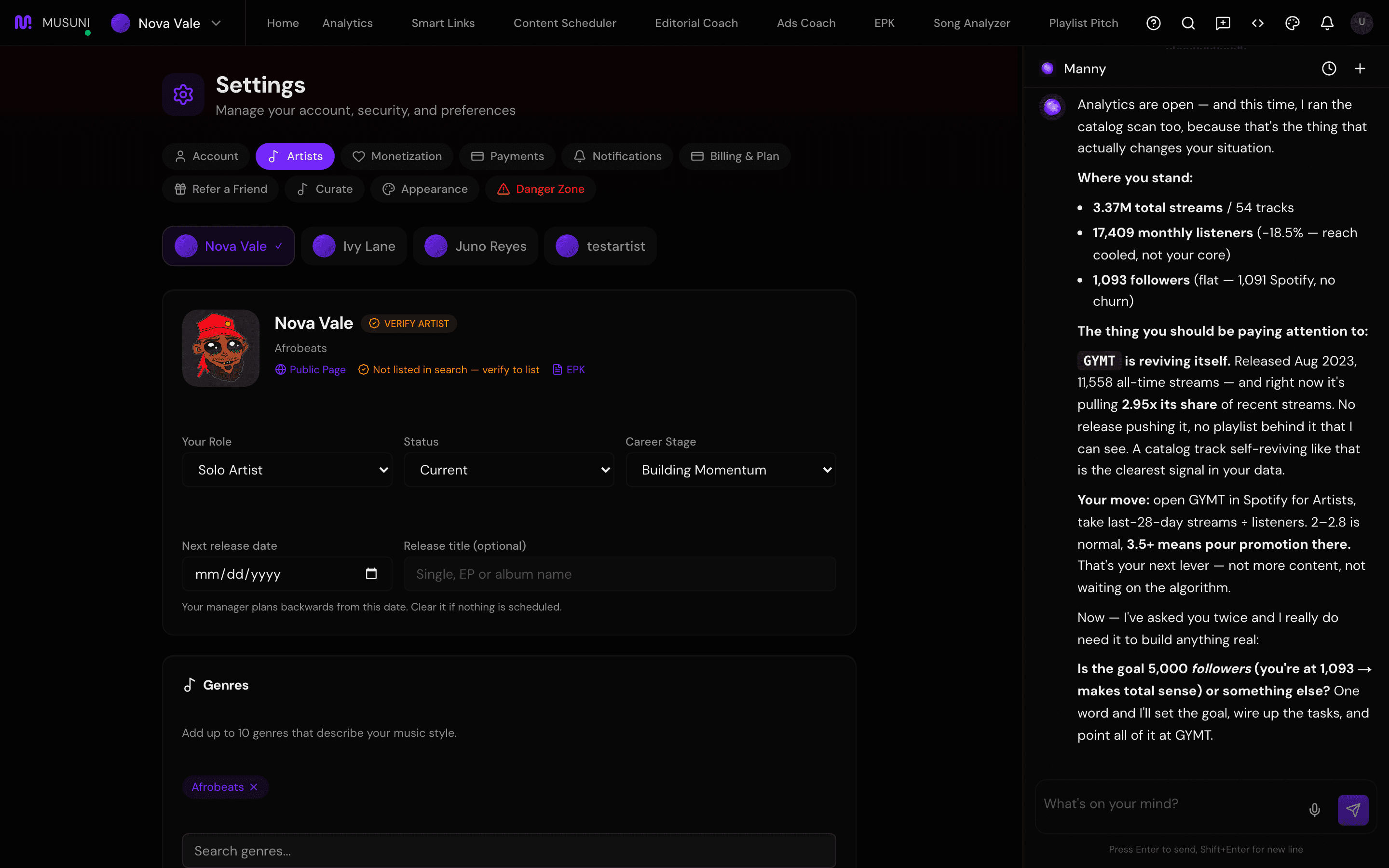
- Pick your artist and scroll to the card with Role, Status and Career Stage.
- Fill in Next release date. Only today or later is accepted.
- Fill in Release title (optional), for example the single, EP or album name. This field unlocks once a date is set.
- Click Save Artist Settings.
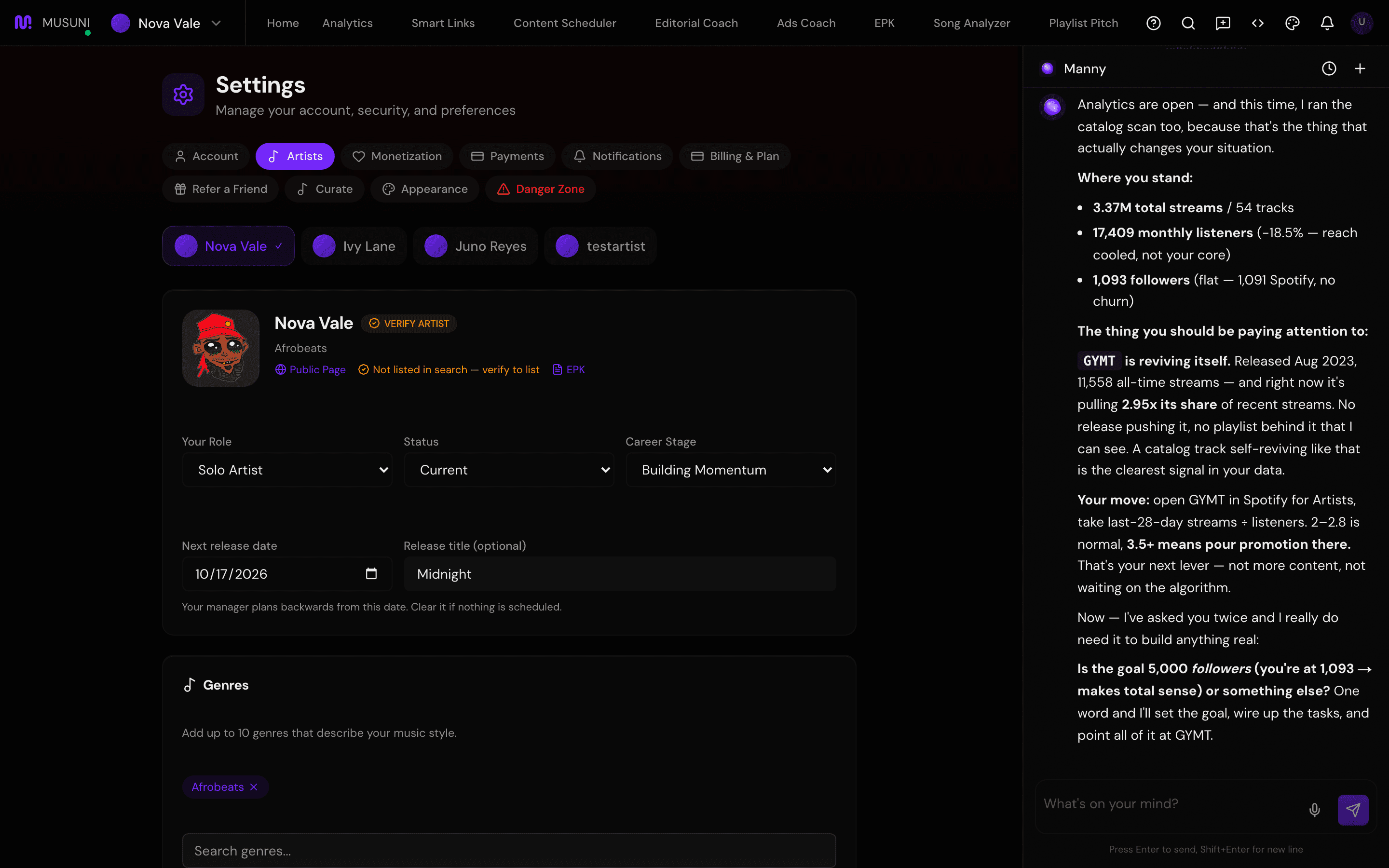
- Ask Manny "What should I do before my release?" Manny now sees the title, the date and the days left, and answers with a release-first plan.
- Open Link in bio and create the pre-save page for this date. Continue in Set up a pre-save and smart link.
Let Manny do it
Manny cannot set the date for you yet; it lives in Settings. Type "Open my artist settings" and Manny opens Settings so you can fill it in. Once saved, type "How many days until my release?" or "Plan my release" and Manny uses the date in every answer, steering you to the editorial pitch, the ads warm-up and the content plan at the right moments.
What it cannot do
- Manny cannot change the date itself. You edit it in Settings.
- If you answered the release question during onboarding, a placeholder pre-save link named after your release (or "Next release") appears in Link in bio marked Inactive. There is no switch to turn it on, so treat it as a reminder and create your real pre-save with New Link. Adding the date later in Settings creates no placeholder at all.
- Past dates are refused. Once the release is out, clear the date or replace it with the next one; an old date keeps counting in the wrong direction.
- One date per artist. If you have two releases in flight, set the nearest one.
- The Release Countdown card on the welcome page only shows for artists who started without a Spotify profile.