
Read your analytics
You know which songs, cities and playlists are moving this week, so you spend your next hour on the thing that is working.
What this gets you
One screen with your streams, followers, top tracks, listening cities and tracked playlist and radio placements, refreshed every day. You stop opening five dashboards and start asking "what changed, and what do I do about it".
When to use it
Once a week is enough. Daily checking makes small dips feel like emergencies; they are not. Open it the morning after a release, a post that popped, or a playlist add, and when Manny's briefing points at something.
It only fills in when your music is on streaming services. Brand-new artists see a "Connect Spotify to see your analytics" card instead; skip to Build your press kit and come back after your first release.
Do it
- Open Analytics (Cmd+K, type "Analytics", or the welcome card). The header shows "Tracking 19+ platforms" and "Updated [time] ago". The first open can take up to a minute while your full catalog is pulled.
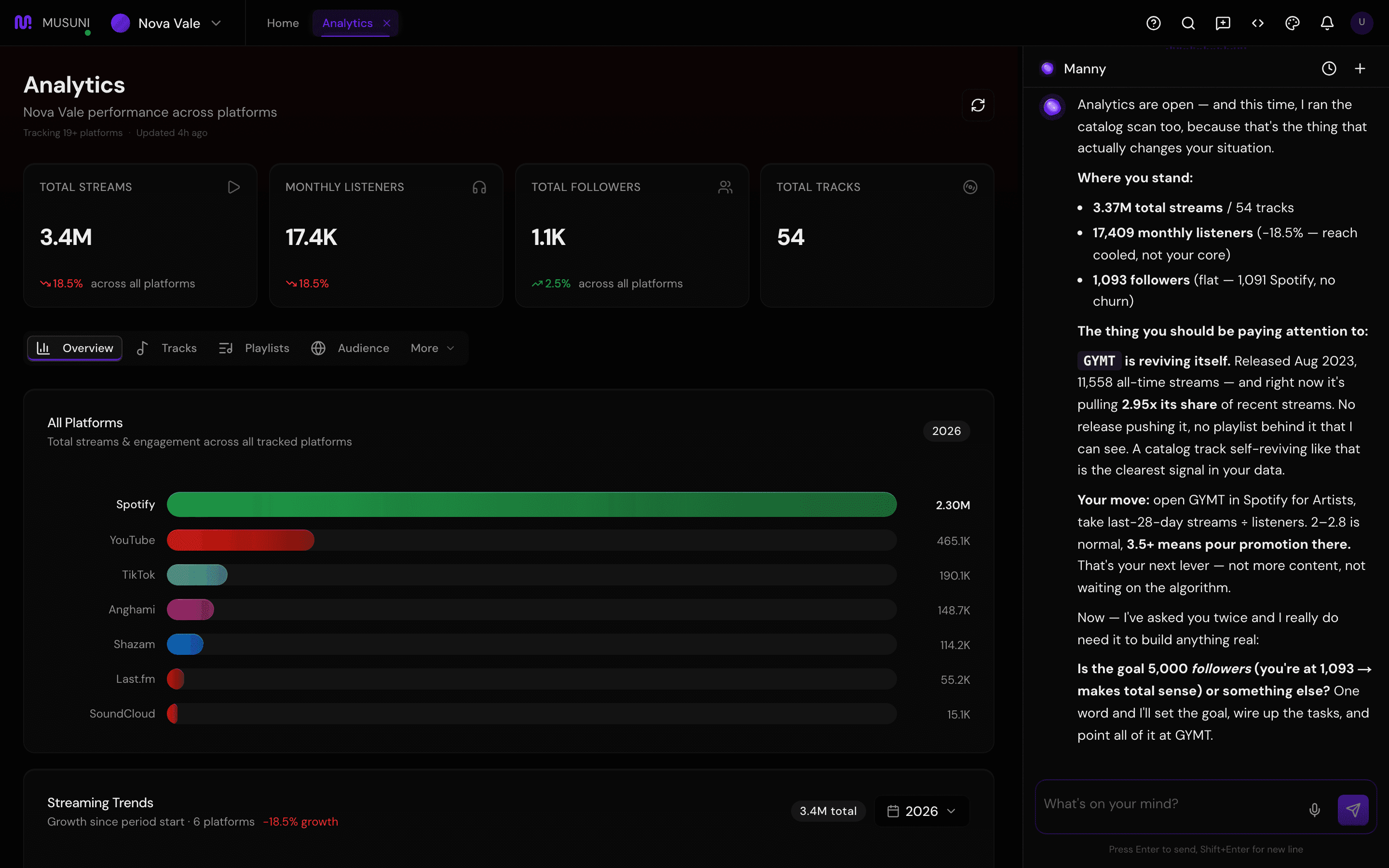
- Read the Overview tab top to bottom. The cards give totals across platforms and how many services your music is found on. The trend chart shows listeners over time. Look for direction, not the number.
- Click Tracks. Top Tracks ranks your songs by streams. If one song is pulling away from the others, that is the one to push in content and ads.
- Click Playlists. Placements are grouped by platform (Spotify, Apple Music, Deezer, YouTube, Amazon). The count reads "N+ tracked" because the sources see a subset of every playlist that exists. Treat it as "at least N", never "only N".
- Click Audience. Top Listening Countries and Top Listening Cities tell you where to book shows and who to target with ads.
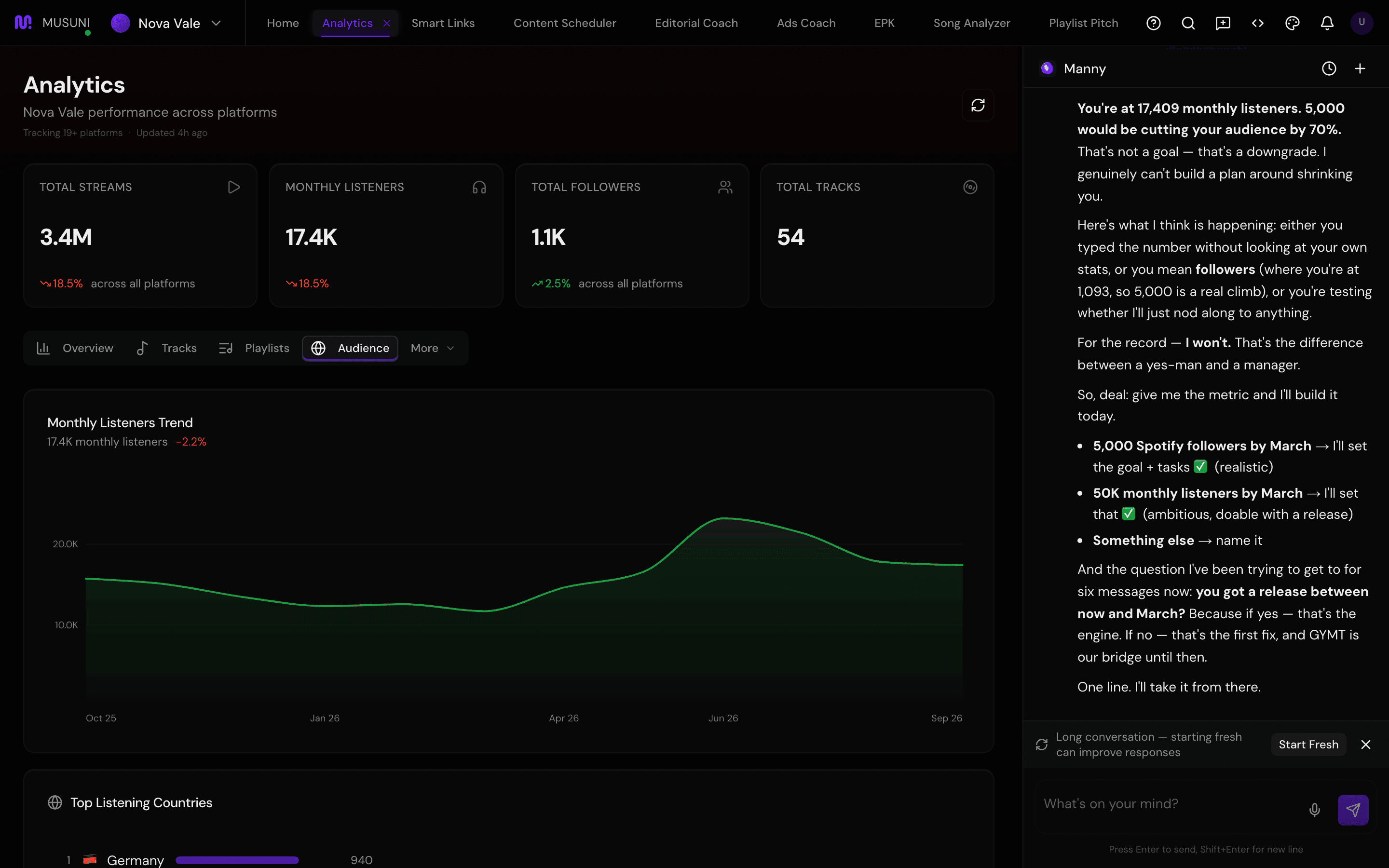
- The More menu next to the tabs holds the rest: Cross-Platform for totals across services, Social for follower counts on Instagram, YouTube, TikTok and Spotify, Activity for milestones, chart entries and playlist adds as they happen, Revenue for a rough estimate from stream counts, and Radio for airplay by station and country. Radio is also "at least N tracked".
- Click the refresh icon (top right, "Refresh analytics") if you want a fresh pull today. A "Refreshing with latest metrics..." line means you are looking at the last saved numbers and fresh ones are on the way.
- Turn one finding into an action: open the chat and tell Manny what you saw ("my streams are up in Berlin, what should I do with that?").
Let Manny do it
"Show my analytics" opens the workspace. "How are my streams doing?" or "Which of my songs is growing fastest?" answers in the chat with the real numbers. "Where are my fans located?" reads the cities. "Compare this month to last month" does the arithmetic for you.
Manny also watches these numbers for you: alerts such as a playlist add or a spike in streams land in your daily briefing on the welcome page.
What it cannot do
- Numbers refresh once a day. What you see is up to a day old; a release from this morning will not show until tomorrow.
- Playlist and radio counts are "at least N tracked". A placement or a spin the sources did not catch is not missing from your career, only from this screen.
- The Revenue tab is an estimate calculated from stream counts and typical per-stream rates. It is not what you were paid. Your distributor's statements are the only real number.
- Social follower counts appear on their own. Post-level insights for Instagram need the account connected under Integrations.
- Streams on Spotify are shown as tracked by third-party sources, not from your Spotify for Artists login. Saves and Release Radar stats live in Spotify for Artists only.
- If the artist attached to your account is the wrong one, every number here is someone else's. Check the artist name in the top-left before you read anything.